# Organizations, locations, and access
Understand how Viam organizes machines into organizations and locations, and how access control works at each level.
> Source: https://docs.viam.com/organization/overview/
Viam organizes your machines into a three-level hierarchy: organizations contain locations, and locations contain machines.
This hierarchy is also the foundation for access control.
You grant permissions at any level, and they apply to everything within that level.
## Organization, location, and machine hierarchy
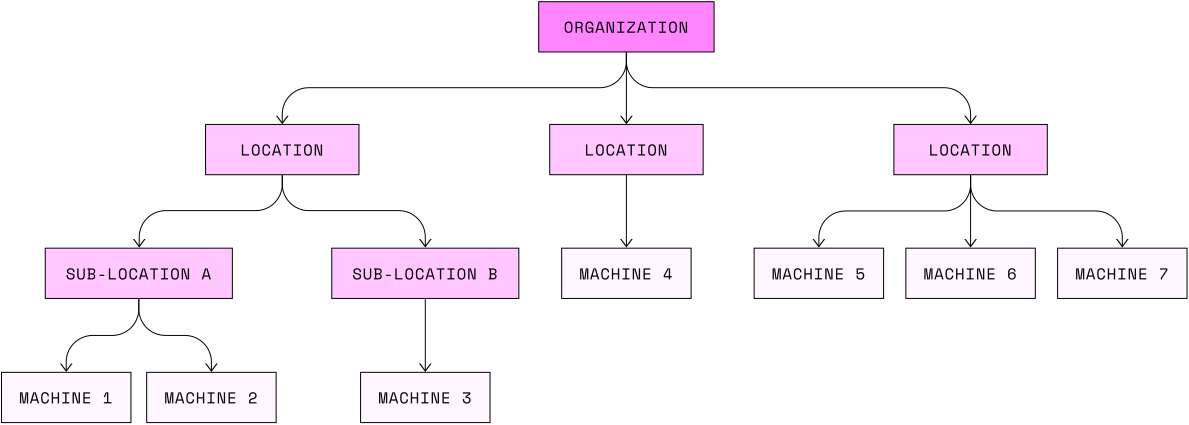 **Organizations** are the top-level grouping.
An organization typically represents a company or team.
Each organization has its own members, API keys, billing, and data region.
**Locations** group machines within an organization.
A location can represent a physical site, a project, or any logical grouping that makes sense for your fleet.
You can nest locations up to three levels deep to create sub-groupings.
**Machines** are individual devices running `viam-server`.
Each machine belongs to exactly one location.
### How the hierarchy affects access
When you grant a user or API key access at a given level, the permissions apply to everything below it:
- **Organization-level access** grants access to all locations and machines in the organization.
- **Location-level access** grants access to all machines in that location and its sub-locations.
- **Machine-level access** grants access to only that specific machine.
This means you can use the hierarchy to approximate team boundaries even without an explicit team or group feature.
For example, create a "Production" location and a "Testing" location, then grant field operators access only to "Production."
For details on what each role can do, see [Permissions](/organization/rbac/).
### Choose your structure
Before connecting devices, decide how you want to group your machines:
- **By physical site**: one location per office, warehouse, or deployment site.
- **By project or environment**: locations for "Production," "Staging," and "Development."
- **By customer**: if you deploy machines to customers, one location per customer lets you share access with that customer's organization.
You can combine these approaches using nested locations.
For example, a "Chicago warehouse" location could contain "Floor 1" and "Floor 2" sub-locations.
## Create and manage organizations
### Create an organization
1. Log into [the Viam app](https://app.viam.com).
1. Click the organization dropdown in the top navigation bar and click the **+** button.
1. Name the organization.
1. From the **Data region** dropdown, choose where Viam should store your data. See [Choose data region](/organization/data-regions/).
1. Click **Create**.
### Rename an organization
You must be an organization owner.
1. Click the organization name in the top navigation bar and click **Settings**.
1. In the **Details** section, change the name and click **Rename**.
> **Caution:**
>
>
> If your organization owns modules or packages in the Viam Registry, the namespace changes automatically.
> You must update any configurations that reference your modules using the old namespace.
>
### Delete an organization
1. Delete all locations in the organization.
1. Click the organization name in the top navigation bar and click **Settings**.
1. At the bottom of the page, click **Delete organization**.
### Restrict sign-in methods
Organization owners can restrict which sign-in methods members can use.
By default, all methods are allowed: password, Google, GitHub, and Apple.
1. Click the organization name in the top navigation bar and click **Settings**.
1. In the **Security** section, toggle **Restrict sign-in methods**.
1. Select the sign-in methods you want to allow.
1. Click **Save**.
Members who attempt to sign in with a restricted method are redirected to choose an allowed method.
You can also restrict sign-in methods programmatically using the [`UpdateOrganization`](/reference/apis/fleet/#updateorganization) API method.
## Create and manage locations
### Create a location
1. Click the organization name in the top navigation bar and click **Locations**.
A default location called `First Location` is created automatically for new organizations.
Use the **...** menu to rename it.
1. To create additional locations, click **+ Add location**.
### Create sub-locations
1. Create a new location using **+ Add location**.
1. On the new location's page, click the **...** menu and click **Move**.
1. Choose a parent location.
You can nest locations up to three levels deep.
### Move a machine to a different location
Organization owners and location owners can move machines between locations.
1. Navigate to your machine's page.
1. Click the **...** button in the upper-right corner.
1. Select **Move to a new location**.
1. Choose the destination location and confirm.
> **Important:**
>
>
> Moving a machine changes its network address and its access permissions.
> Users with access to the old location lose access, and users with access to the new location gain access.
> Historical data stays associated with the original location.
>
### Share a location with another organization
To give another organization access to a location, see [Share a location with an organization](/organization/access/#share-a-location-with-an-organization).
## Your account
### Create an account and log in
Navigate to [app.viam.com](https://app.viam.com).
Click **Sign Up** to create an account using Google, GitHub, Apple, or email.
If you already have an account, click **Log In**.
To reset a forgotten password, click **Forgot password** on the login page.
> **Note:**
>
>
> Accounts created from different authentication providers (for example, Google and email) are separate accounts, even if they use the same email address.
>
### Sign out
Click your profile icon in the upper-right corner and click **Sign out**.
### Delete your account
Contact [contact@viam.com](mailto:contact@viam.com) to delete your account.
Account deletion may result in destruction of associated content.
### CLI authentication
You can authenticate with the Viam CLI using either interactive login or an API key:
```sh {class="command-line" data-prompt="$"}
viam login
```
```sh {class="command-line" data-prompt="$"}
viam login api-key --key-id --key
```
To check who you are currently authenticated as:
```sh {class="command-line" data-prompt="$"}
viam whoami
```
If you work with multiple organizations or API keys, you can set up CLI profiles to switch between credentials:
```sh {class="command-line" data-prompt="$"}
viam profiles add --profile-name production --key-id --key
```
```sh {class="command-line" data-prompt="$"}
viam profiles list
```
You can also set default org and location for CLI commands:
```sh {class="command-line" data-prompt="$"}
viam defaults set-org --org-id
```
```sh {class="command-line" data-prompt="$"}
viam defaults set-location --location-id
```
For the full CLI reference, see [CLI](/cli/reference/).
## FAQ
### Can I move a location to a different organization?
No.
You can [share a location](/organization/access/#share-a-location-with-an-organization) with another organization, but the location stays in its original organization.
Machines in a shared location continue to use the primary organization for data association, private ML models, and registry items.
### Can I rename my organization after creation?
Yes, if you are an organization owner.
See [Rename an organization](#rename-an-organization).
### Can I move a machine across organizations?
No.
You can only move a machine to a different location within the same organization.
To transfer a machine to another organization, you would need to set up a new machine in the target organization and reconfigure it.
## Next steps
- [Control access](/organization/access/) to your machines by granting and revoking permissions.
- [Manage API keys](/organization/api-keys/) for programmatic and CLI access.
- Review the [permissions reference](/organization/rbac/) to understand what each role can do.
**Organizations** are the top-level grouping.
An organization typically represents a company or team.
Each organization has its own members, API keys, billing, and data region.
**Locations** group machines within an organization.
A location can represent a physical site, a project, or any logical grouping that makes sense for your fleet.
You can nest locations up to three levels deep to create sub-groupings.
**Machines** are individual devices running `viam-server`.
Each machine belongs to exactly one location.
### How the hierarchy affects access
When you grant a user or API key access at a given level, the permissions apply to everything below it:
- **Organization-level access** grants access to all locations and machines in the organization.
- **Location-level access** grants access to all machines in that location and its sub-locations.
- **Machine-level access** grants access to only that specific machine.
This means you can use the hierarchy to approximate team boundaries even without an explicit team or group feature.
For example, create a "Production" location and a "Testing" location, then grant field operators access only to "Production."
For details on what each role can do, see [Permissions](/organization/rbac/).
### Choose your structure
Before connecting devices, decide how you want to group your machines:
- **By physical site**: one location per office, warehouse, or deployment site.
- **By project or environment**: locations for "Production," "Staging," and "Development."
- **By customer**: if you deploy machines to customers, one location per customer lets you share access with that customer's organization.
You can combine these approaches using nested locations.
For example, a "Chicago warehouse" location could contain "Floor 1" and "Floor 2" sub-locations.
## Create and manage organizations
### Create an organization
1. Log into [the Viam app](https://app.viam.com).
1. Click the organization dropdown in the top navigation bar and click the **+** button.
1. Name the organization.
1. From the **Data region** dropdown, choose where Viam should store your data. See [Choose data region](/organization/data-regions/).
1. Click **Create**.
### Rename an organization
You must be an organization owner.
1. Click the organization name in the top navigation bar and click **Settings**.
1. In the **Details** section, change the name and click **Rename**.
> **Caution:**
>
>
> If your organization owns modules or packages in the Viam Registry, the namespace changes automatically.
> You must update any configurations that reference your modules using the old namespace.
>
### Delete an organization
1. Delete all locations in the organization.
1. Click the organization name in the top navigation bar and click **Settings**.
1. At the bottom of the page, click **Delete organization**.
### Restrict sign-in methods
Organization owners can restrict which sign-in methods members can use.
By default, all methods are allowed: password, Google, GitHub, and Apple.
1. Click the organization name in the top navigation bar and click **Settings**.
1. In the **Security** section, toggle **Restrict sign-in methods**.
1. Select the sign-in methods you want to allow.
1. Click **Save**.
Members who attempt to sign in with a restricted method are redirected to choose an allowed method.
You can also restrict sign-in methods programmatically using the [`UpdateOrganization`](/reference/apis/fleet/#updateorganization) API method.
## Create and manage locations
### Create a location
1. Click the organization name in the top navigation bar and click **Locations**.
A default location called `First Location` is created automatically for new organizations.
Use the **...** menu to rename it.
1. To create additional locations, click **+ Add location**.
### Create sub-locations
1. Create a new location using **+ Add location**.
1. On the new location's page, click the **...** menu and click **Move**.
1. Choose a parent location.
You can nest locations up to three levels deep.
### Move a machine to a different location
Organization owners and location owners can move machines between locations.
1. Navigate to your machine's page.
1. Click the **...** button in the upper-right corner.
1. Select **Move to a new location**.
1. Choose the destination location and confirm.
> **Important:**
>
>
> Moving a machine changes its network address and its access permissions.
> Users with access to the old location lose access, and users with access to the new location gain access.
> Historical data stays associated with the original location.
>
### Share a location with another organization
To give another organization access to a location, see [Share a location with an organization](/organization/access/#share-a-location-with-an-organization).
## Your account
### Create an account and log in
Navigate to [app.viam.com](https://app.viam.com).
Click **Sign Up** to create an account using Google, GitHub, Apple, or email.
If you already have an account, click **Log In**.
To reset a forgotten password, click **Forgot password** on the login page.
> **Note:**
>
>
> Accounts created from different authentication providers (for example, Google and email) are separate accounts, even if they use the same email address.
>
### Sign out
Click your profile icon in the upper-right corner and click **Sign out**.
### Delete your account
Contact [contact@viam.com](mailto:contact@viam.com) to delete your account.
Account deletion may result in destruction of associated content.
### CLI authentication
You can authenticate with the Viam CLI using either interactive login or an API key:
```sh {class="command-line" data-prompt="$"}
viam login
```
```sh {class="command-line" data-prompt="$"}
viam login api-key --key-id --key
```
To check who you are currently authenticated as:
```sh {class="command-line" data-prompt="$"}
viam whoami
```
If you work with multiple organizations or API keys, you can set up CLI profiles to switch between credentials:
```sh {class="command-line" data-prompt="$"}
viam profiles add --profile-name production --key-id --key
```
```sh {class="command-line" data-prompt="$"}
viam profiles list
```
You can also set default org and location for CLI commands:
```sh {class="command-line" data-prompt="$"}
viam defaults set-org --org-id
```
```sh {class="command-line" data-prompt="$"}
viam defaults set-location --location-id
```
For the full CLI reference, see [CLI](/cli/reference/).
## FAQ
### Can I move a location to a different organization?
No.
You can [share a location](/organization/access/#share-a-location-with-an-organization) with another organization, but the location stays in its original organization.
Machines in a shared location continue to use the primary organization for data association, private ML models, and registry items.
### Can I rename my organization after creation?
Yes, if you are an organization owner.
See [Rename an organization](#rename-an-organization).
### Can I move a machine across organizations?
No.
You can only move a machine to a different location within the same organization.
To transfer a machine to another organization, you would need to set up a new machine in the target organization and reconfigure it.
## Next steps
- [Control access](/organization/access/) to your machines by granting and revoking permissions.
- [Manage API keys](/organization/api-keys/) for programmatic and CLI access.
- Review the [permissions reference](/organization/rbac/) to understand what each role can do.